
The Fix Queue and One-Click Fix
Every issue a scan finds becomes an item RankEngine tracks until it is fixed. This guide shows how to fix them: most in one click, some one at a time, and the rest as tasks for a person.
Who this is for
Merchants who have run their first analysis and want to clear the issues it found.
What you need
- A finished scan (see Install RankEngine and run your first scan).
- A plan or an active trial. AI fixes are included in your plan; there is no per-fix charge.
- For the structured-data and AI-file fixes to show on your storefront: the RankEngine app embed switched on (see Theme setup).
Fix many issues in one click
- Open SEO Checker from the app menu. The Health tab shows your score and the issues that cost the most points.
- Click Fix issues at the top of the page (it shows how many issues it can fix). The fix dialog opens and groups everything RankEngine can fix for you, each group with how many pages or products it changes.
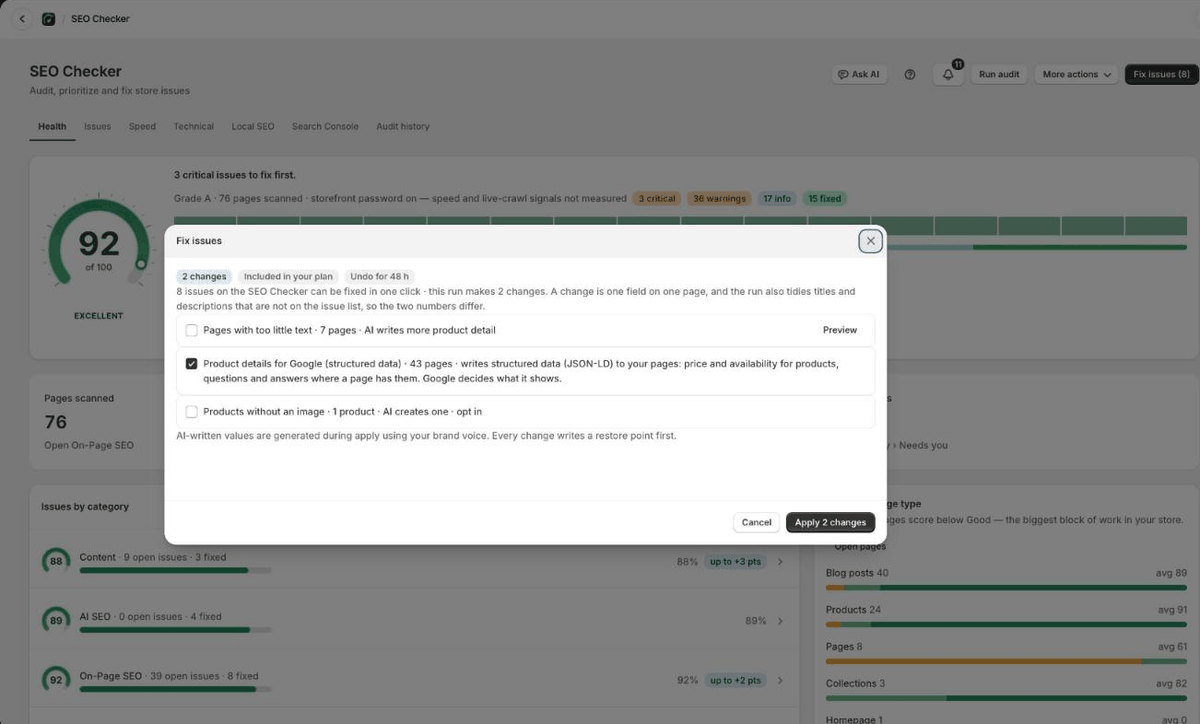
- Click Preview on a group to see the before and after for its pages. Hide preview closes it.
- Untick any group you want to leave alone. Two groups stay unticked until you tick them: products without an image (AI creates one) and page addresses (changes live page addresses and redirects the old ones).
- Click the apply button at the bottom — it reads Apply 1 change or, for more, "Apply 12 changes". AI-written values are generated during the run using your brand voice, and every change writes a restore point first.
- Watch each row update as Shopify confirms it. When the run ends, click Done.
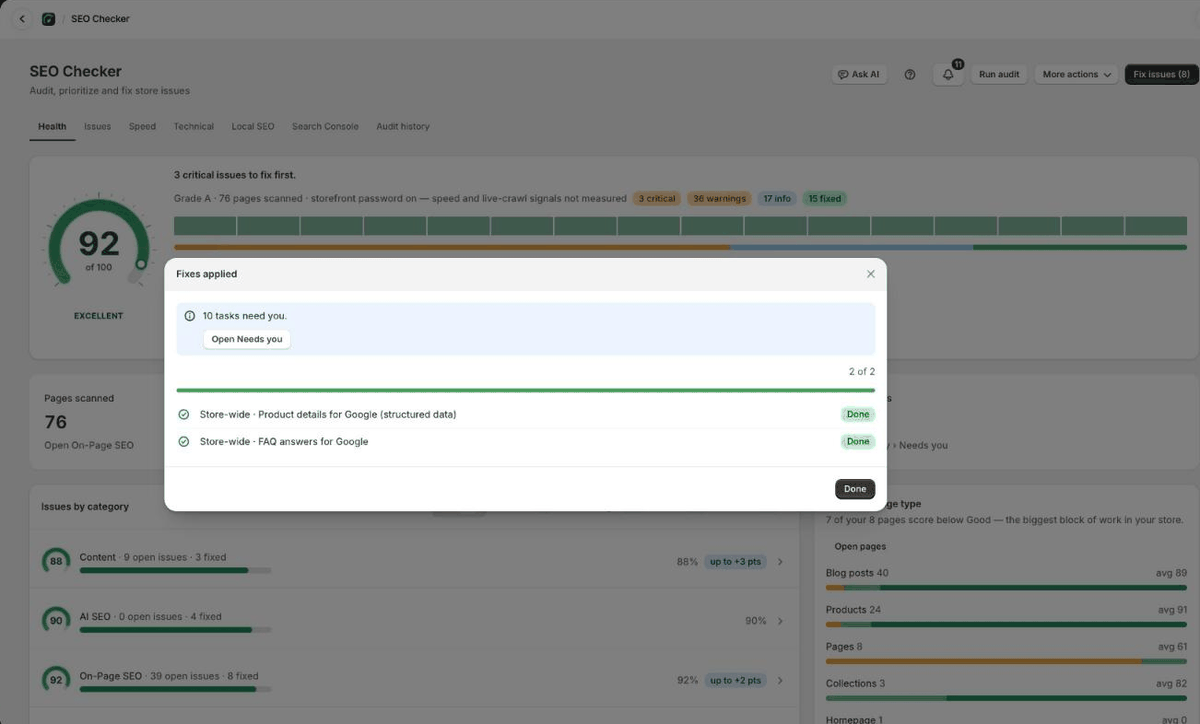
The Dashboard offers the same dialog through Review fixes in its next actions.
Fix one issue
- In SEO Checker, open the Issues tab. Issues are grouped by category; a category with fixable issues has its own Fix all button.
- Click Fix… on an issue to open its fix panel, which shows the affected pages and what will change.
- If you decide an issue type does not apply to your store, click Ignore. Ignored issue types are hidden from your lists and counts; the score still measures them. Restore brings one back.
To fix one page at a time, open it in On-Page SEO and use Fix all automatically, or edit its fields and save with the save bar.
Work through the tasks that need you
Some issues have no Shopify field an app can write, or need a judgement only you can make. They become tasks.
- Open Agent Ready and the Needs you tab (the Dashboard's Open tasks button goes straight there).
- Each task says what to do and how much it affects your score. Switch between List and Board to see tasks as a list or as To do, In progress and Done columns. Open a task's actions and click Start when you begin it; it moves to In progress.
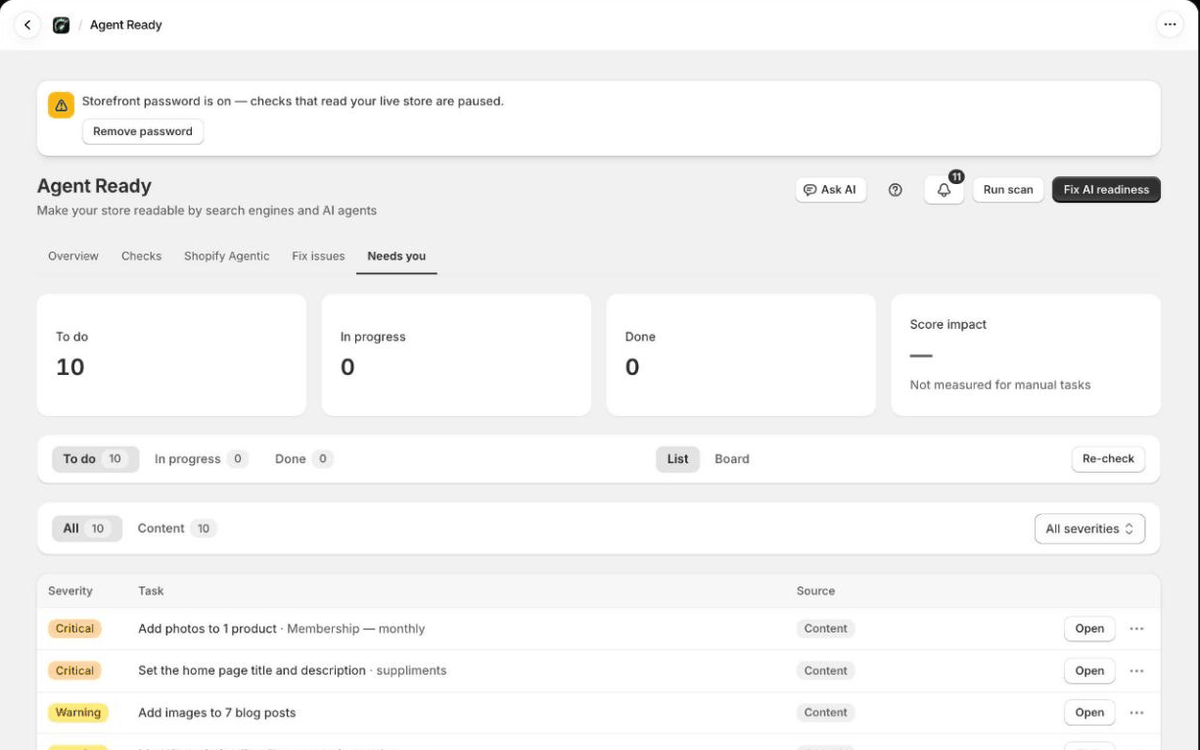
- Make the change in Shopify (or with your theme developer, for theme work).
- Back in RankEngine, click Re-check at the top of the tab. Tasks whose problem is gone close ("2 tasks closed"); if nothing changed you see "Re-checked — nothing changed yet".
- Use Mark done for a task you handled in a way a re-check cannot see. Back to To do reopens it.
Common tasks: heading problems that come from your theme (no main heading, more than one, headings out of order, a heading before the H1), pages blocked by robots.txt, pages too deep in your navigation, redirect chains, and social images the theme controls. RankEngine does not change your theme's headings. On a "first heading" issue, Find it in my theme names the theme file and line so your theme developer knows where to look.
What you should see
Each change shows one of these states — RankEngine never shows an issue as fixed before Shopify confirms it:
- Applied and confirmed on your store — Shopify shows the new value.
- Applied — confirmation from your store is still pending — the write was accepted but the new value could not be read back yet.
- Applied — Shopify could not confirm the write — the value read back does not match. The issue stays open and is picked up again.
- Failed — the write did not go through; the reason is shown on the row.
After the next scan, the fixed issues leave the list and the SEO score updates.
Troubleshooting
- "Nothing to fix right now — every automatic check passes." Everything left needs a person — open Needs you.
- A row failed. Click Retry on it. If it fails again, the reason on the row says why (for example, a product Shopify will not let apps edit).
- "Interrupted — still queued." The run is picked up again on its own; you do not need to start it again.
- The fix landed but the storefront still shows the old value. Shopify's storefront can take a few minutes to update. Structured data and AI files also need the app embed on.
- You want a change back. Fixes that keep a restore point can be undone — see Change history and undo.
Related
- Setting up Autopilot — the same fixes on a daily schedule
- Setting a focus keyword
- Reading the Health report