
Writing and publishing a blog post
Content Studio writes SEO blog posts for your store and publishes them to your Shopify blog. Its tabs are Calendar, Write, Blogs and Settings. This guide writes one post from a keyword and takes it all the way to your storefront.
Who this is for
Merchants who want a blog post that targets a keyword their customers search for, written in their store's voice and linked to their products.
What you need
- Basic or Pro (or an active trial), with at least one AI post left this month: 10 a month on Basic, 31 on Pro. The Write tab shows how many you have used.
- A blog in your Shopify store (Shopify creates one called "News" by default).
- Recommended: your brand voice set (Content Studio › Settings › Brand voice), so posts sound like you rather than generic. See Brand Voice Studio.
Steps
- Open Content Studio from the app menu and click Write blog post (or open the Write tab).
- Enter a Target keyword — a topic you want to rank for. Keyword ideas are in SEO Tools › Keyword research.
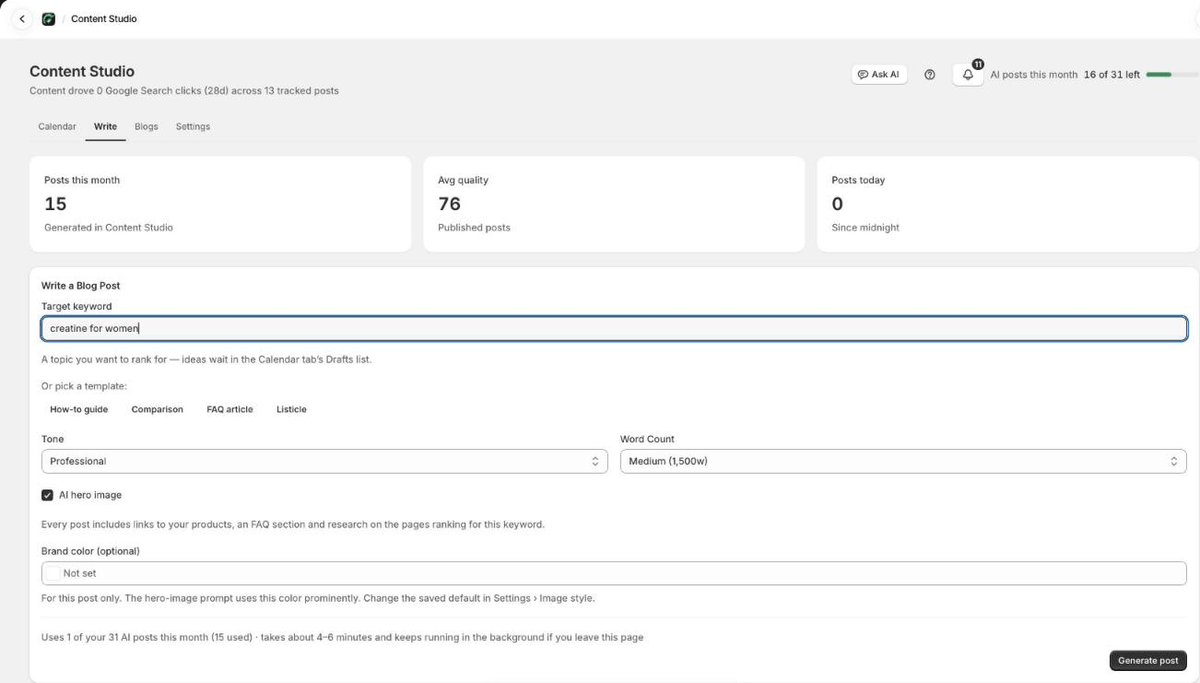
- Choose the length under Word Count (Short 800, Medium 1,500, Long 3,000, Comprehensive 5,000 words, or Custom for 500–8,000), pick a Tone, and optionally a brand colour for the AI hero image.
- Click Generate post. Writing takes about 4–6 minutes. You can leave the page — the post keeps being written in the background and appears under Recent Generations and on the Blogs tab when it is done. Show progress reopens the progress view.
- When the post is ready, read the Preview and its Quality Breakdown. Every post is scored out of 100, including checks for AI-sounding text and for text copied from the pages it researched; 90 or more is rated healthy.
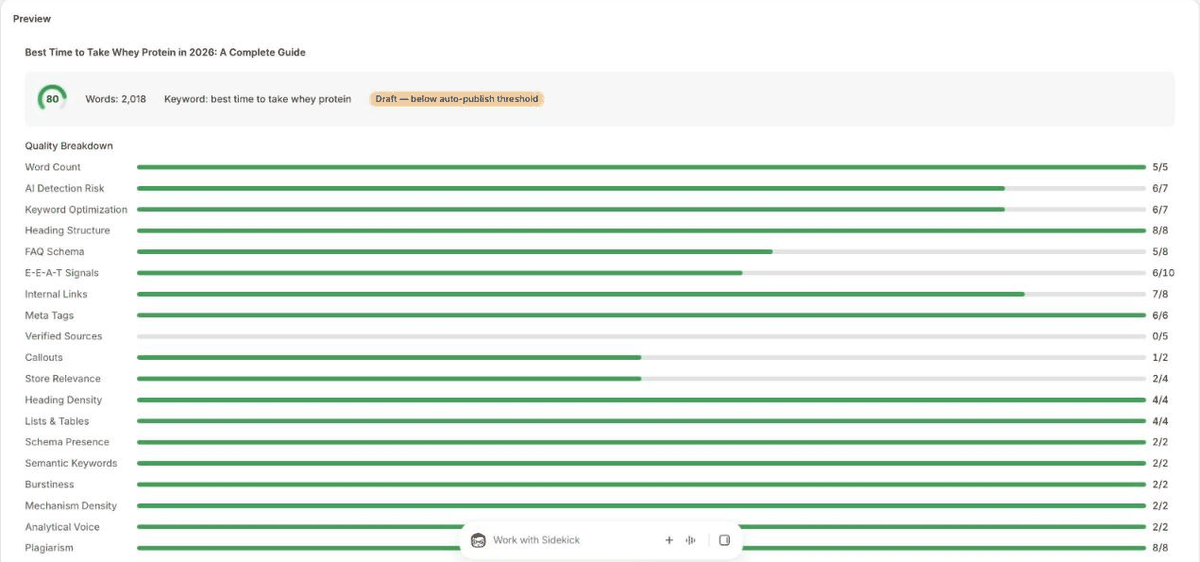
- Click Edit draft to change anything — the title, the body, the hero image — and save your edits.
- Publish it:
- Publish to Shopify publishes it to your blog now, or
- Schedule, choose a date under Schedule for, and click Confirm schedule. A scheduled post publishes on its day from 09:00 UTC.
- Open the Blogs tab to see the post with its status, score and an Edit in Shopify link.
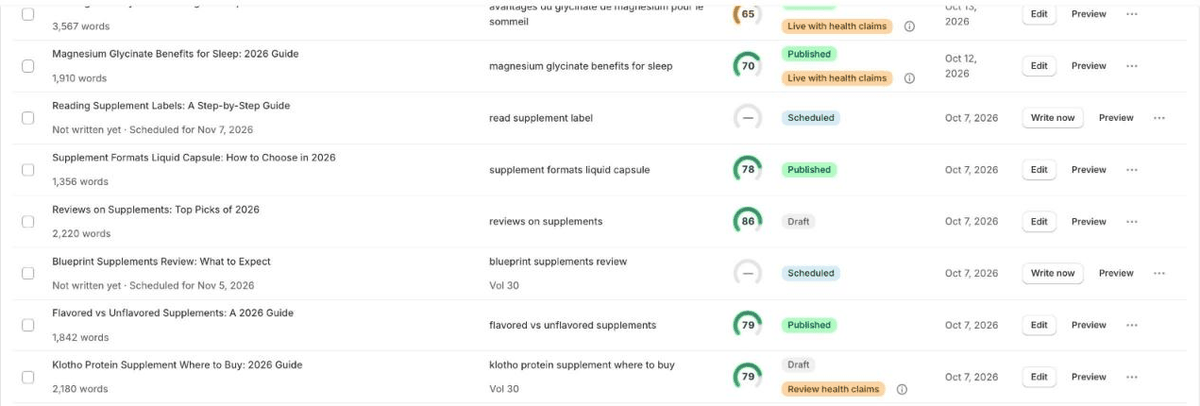
Writing posts automatically
On the Calendar tab, ideas from your content plan sit on your posting days. Write now on an idea writes it straight away. With Publish automatically on (Content Studio › Settings › Publishing), ideas are placed on your publishing days, written up to a day ahead and published from 09:00 UTC, while you have AI posts left that month. Turning it off moves automatically scheduled posts back to drafts; it never moves posts you placed yourself.
What goes into a post
- Research on the pages currently ranking for the keyword.
- Links to your products, collections or blog pages, and an FAQ section.
- Your brand voice, when you have set one.
- An AI hero image in the style set under Content Studio › Settings › Image style.
What you should see
- The post on your Shopify blog under the title you approved, with its SEO title and description set and structured data added.
- The post on the Blogs tab with status Published.
- One AI post used in this month's allowance. Writing the same post again in the same month still counts once; a cancelled generation uses nothing; the allowance resets on the 1st. There is no per-post charge.
Troubleshooting
- "Similar post exists." RankEngine asks before writing a second post for the same keyword and names the post you already have. Click Generate anyway to write another one. If the store refuses a second post ("This store already has a post for this keyword."), click Open existing post to edit the one you have.
- "Generated with limited checks." The Google-results research or the copied-text check could not run (data source unavailable). The post itself is ready to use.
- "Saved as a draft — below the auto-publish threshold." Automatic publishing holds back posts below your publish score. Review and publish it yourself, or click Regenerate to write it again.
- "Failed to publish — check that your store has a blog." Create a blog in Shopify (Online Store › Blog posts), then publish again.
- "Monthly posts used. New posts start again on the 1st." You have used this month's allowance; it resets on the 1st, or choose a larger plan in Settings › Plan & usage.
- The post is taking longer than usual. It is still being written and appears under Recent Generations when done.